Telegram Stars Payment Failed: Time Limit Fix
If your Telegram Stars checkout ends on a Payment Failed screen, do not panic and do not keep paying the same old invoice.
On MyStars, a TON-based payment invoice is time-limited. The current payment window is about 15 minutes. If no payment is detected before that window closes, the checkout can show Payment Failed with this message:
Payment was not detected within the time limit. If you sent funds, they will be returned automatically.
That wording matters. The screen does not necessarily mean you sent money and MyStars lost it. It usually means the checkout did not detect a completed payment in time. The safest next step depends on whether your wallet actually sent a transaction.
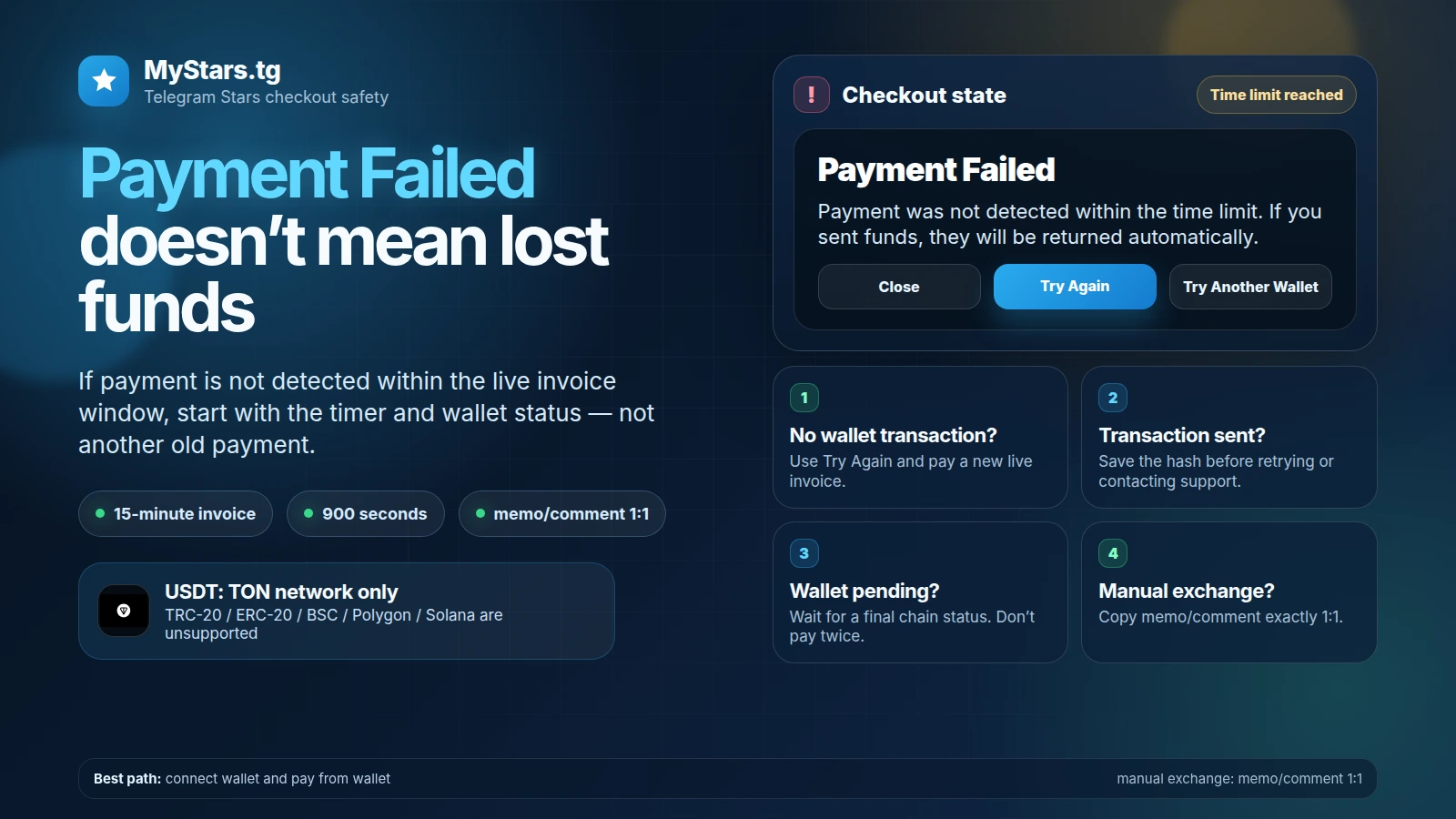
What the Payment Failed screen means
A crypto checkout is not an open-ended payment address. It is a payment session with a timer, a selected recipient, a selected payment method, and an expected amount.
For the current MyStars TON invoice flow:
- the payment window is about 900 seconds / 15 minutes;
- if no payment is detected by the end of that window, the order status can become failed;
- the buyer-facing screen says Payment Failed, not “Payment expired”;
- the visible message says payment was not detected within the time limit;
- the available recovery actions can include Close, Try Again, and Try Another Wallet.
So when you see this state, treat it as a timed-out checkout first. Then check whether the wallet ever sent anything.
The safe recovery path
1. Stop before sending anything else
Do not scan the same QR again. Do not reuse an address from a screenshot. Do not copy old payment details from a tab that already failed.
First decide which case you are in:
- No wallet transaction was sent → the invoice simply timed out. Use a fresh checkout.
- The wallet transaction was rejected → no completed payment was sent. Create a new checkout after fixing the wallet issue.
- The wallet transaction is pending or confirmed → save the transaction proof before doing anything else.
That one distinction prevents most duplicate-payment problems.
2. If you did not send funds, use Try Again
If your wallet never approved or broadcast a transaction, the clean path is simple:
- Tap Try Again.
- Confirm the Telegram username again.
- Choose the payment method again.
- Check the amount and network on the new checkout.
- Pay only the new, live invoice.
A fresh invoice matters because the old one had its own timer and payment details. Even if the screen still looks familiar, do not assume the old invoice is safe to pay.
3. If you want a different wallet, use Try Another Wallet
Use Try Another Wallet if the first wallet could not complete the payment, did not have enough TON for gas, had the wrong network selected, or failed to open through TON Connect.
Before approving in the new wallet, check:
- Telegram username;
- token and network;
- final amount;
- wallet network fee;
- any order comment or memo shown by the wallet.
Do not edit the payment fields unless the checkout explicitly tells you to. The wallet confirmation should match the current checkout.
4. If you pay manually from an exchange, copy the memo/comment exactly
The recommended path is to connect a TON-compatible wallet to MyStars and pay from that wallet. It is usually simpler, faster, and more reliable than a manual transfer from an exchange because the checkout can prefill the transaction details for you.
Manual exchange transfer should be treated as a fallback. If you use it, copy every payment field from MyStars exactly:
- recipient address and exact amount;
- token and TON network;
- memo / comment / order comment.
The memo or comment is especially important. If MyStars gives you a memo/comment, copy it one-to-one, exactly as shown — character for character. Do not shorten it, translate it, add spaces, remove prefixes, or put it in a different field.
If the memo/comment is missing or changed, MyStars may not be able to match the incoming transaction to your order. In that case, the payment will be sent back to the address it came from, and support may still need your transaction hash to check what happened.
5. If your wallet did send funds, save proof first
If the wallet or exchange shows a transaction hash, transaction link, or confirmed outgoing payment, stop and save it.
You want:
- order or checkout screen screenshot;
- wallet or exchange transaction hash or link;
- sending wallet or exchange withdrawal address;
- token and network;
- amount sent;
- memo/comment used, if the payment was manual;
- approximate time of payment;
- Telegram username that should receive the Stars.
Then check the transaction status in the wallet or block explorer. If it is still pending, wait for the network result. If it is confirmed but MyStars still did not mark the payment as completed, contact support with the proof instead of creating multiple new orders.
If you paid near the end of the timer
The most confusing case is when the wallet was approved close to the 15-minute limit.
Two things can be true at the same time:
- the wallet may show that you attempted or sent a transaction;
- the checkout may still fail because payment was not detected before the invoice window closed.
If the MyStars screen says funds will be returned automatically, follow the screen’s guidance and keep the transaction proof. Do not assume you need to manually “fix” it by sending another payment to the same invoice.
If the return does not appear or the wallet shows a confirmed payment that was not delivered, support will need the transaction details. A transaction hash is much more useful than “I paid but it failed.”
TON and USDT network checks
Payment failure is often a timing issue, but network mismatch can create a separate problem.
If you choose TON, pay from a TON-compatible wallet and keep enough TON for the network fee.
If you choose USDT, the rule is stricter: MyStars accepts USDT on TON / The Open Network only. Other USDT networks are not supported for this checkout.
Do not send USDT on:
- TRC-20;
- ERC-20;
- BSC;
- Polygon;
- Solana;
- any other non-TON network.
If you are unsure which payment method fits your wallet, compare the routes in the TON vs USDT payment comparison. If you already know you want the native TON path, use the TON payment walkthrough. For USDT-specific safety checks, read the USDT on TON wallet checklist.
What not to do after Payment Failed
Avoid these mistakes:
- paying an invoice after the timer has already ended;
- reusing an old QR code or old copied address;
- sending a second payment while the first wallet transaction is still pending;
- making a manual exchange transfer without the exact memo/comment shown by MyStars;
- switching USDT to TRC-20, ERC-20, or another non-TON network;
- changing the wallet memo/comment manually;
- closing the wallet before copying the transaction hash;
- contacting support without order details or transaction proof.
Most failed-payment cases become harder when there are several partial attempts and no clear transaction record.
Troubleshooting by symptom
The screen says Payment Failed, but my wallet never opened
The payment was probably never sent. Start a fresh checkout and try again. If TON Connect did not open the wallet, use Try Another Wallet or reconnect the wallet before paying.
The wallet rejected the transaction
No completed payment was sent. Check wallet balance, TON gas, network, and app confirmation settings. Then create a fresh checkout.
The wallet says pending
Wait for the wallet or explorer to show a final status. Do not pay a second invoice while the first transaction is unresolved.
The wallet says confirmed, but MyStars did not update
Save the transaction hash and order details. Refresh once after confirmation. If the order still does not update, contact support with the proof.
I paid manually from an exchange but forgot the memo/comment
Save the exchange withdrawal record and transaction hash. MyStars needs the exact memo/comment to match a manual transfer to an order. If it was missing or changed, the payment will be returned to the address it came from, and support may need the transaction details to confirm the state.
I used the wrong network
Do not send more money to compensate. Save the transaction details and contact support. Wrong-network recovery depends on the network and payment route and is not always possible.
I paid after the invoice expired
Do not keep paying that invoice. Save the transaction proof and follow the checkout message. If the transaction is confirmed and no return or delivery appears, contact support.
Support checklist
Before contacting support, prepare:
- Telegram username entered in checkout.
- Payment method used: TON or USDT (TON).
- Amount shown by MyStars.
- Amount shown by the wallet or exchange.
- Transaction hash or link, if a transaction was sent.
- Memo/comment used, if you paid manually from an exchange.
- Screenshot of the Payment Failed screen.
- Wallet or exchange withdrawal address and approximate payment time.
This is enough for support to understand whether the issue is a timed-out invoice, a wallet rejection, a pending transaction, a confirmed-but-unmatched payment, a missing manual-transfer memo/comment, or a wrong-network payment.
Bottom line
A MyStars Payment Failed screen after the time limit usually means the checkout did not detect a payment before the invoice expired. The clean fix is to create a fresh checkout — unless your wallet already sent a transaction.
If no funds were sent, use Try Again. If you need a different wallet, use Try Another Wallet. For the safest payment flow, connect a TON-compatible wallet to MyStars and pay from the wallet. If you use a manual exchange transfer instead, copy the memo/comment exactly. If funds were sent, save the transaction hash first and let support review the payment record if it does not resolve automatically.
Buy Telegram Stars with crypto
Buy Telegram Stars with a fresh MyStars checkout — check the timer, wallet, and TON network before paying.
Buy Stars NowFAQ
How long does a MyStars TON payment invoice last?
The current TON invoice window is about 900 seconds, or 15 minutes. If payment is not detected in that time, the checkout can move to a failed state.
Why does MyStars say Payment Failed instead of Payment Expired?
The buyer-facing screen uses Payment Failed with a time-limit message. It means the payment was not detected before the invoice window closed.
Should I pay the same invoice again?
No. If the checkout failed or timed out, create a fresh order with Try Again and pay only the new live invoice.
What if I already sent the payment?
Save the transaction hash or wallet link first. If the transaction confirms but the order does not update, contact support with the order details and proof.
Can I use USDT on TRC-20 or ERC-20?
No. MyStars USDT checkout uses USDT on TON / The Open Network only. TRC-20, ERC-20, BSC, Polygon, Solana, and other non-TON networks are not supported for this flow.
Can I pay manually from an exchange?
A connected wallet is recommended because it is simpler, faster, and more reliable. Manual exchange transfer is only a fallback. If you use it, copy the address, amount, network, and MyStars memo/comment one-to-one, exactly as shown, character for character. If the memo/comment is missing or changed, MyStars may not be able to match the payment and it will be returned to the sender address.
What information does support need?
Support needs the Telegram username, payment method, amount, order or checkout screenshot, transaction hash or link if available, wallet or exchange withdrawal address, exact memo/comment if the payment was manual, and approximate payment time.